Designing Survey Flow
Logic Tab
The Logic tab displays and allows you to edit logical rules that specify the survey flow.
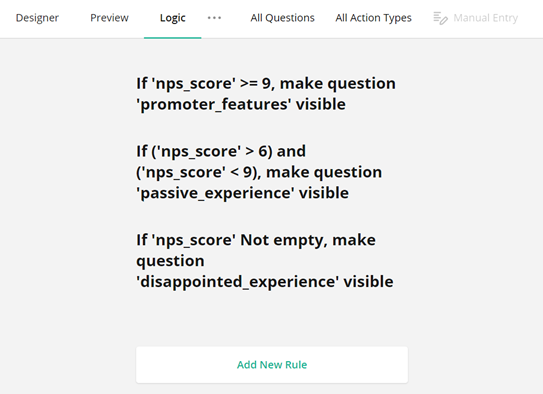
Add a New Rule
Click Add New Rule at the bottom of the Logic tab to display editors that allow you to specify conditions and select actions to perform when these conditions are met. Specify conditions (if-clauses) Select a question whose answer should be checked and a logical operation from the corresponding drop-down menus. Then, specify the answer that applies the rule. Some logical operations do not need an answer (for example, Empty or Not empty).
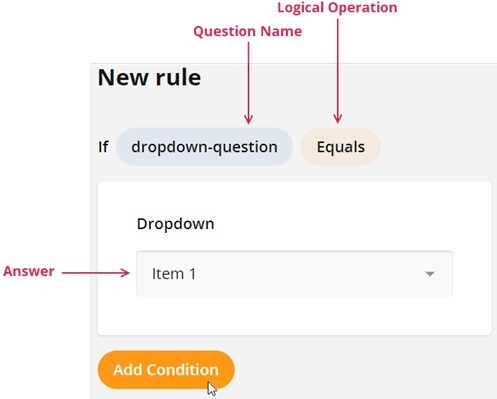
If the rule needs more than one condition, click the Add Condition button. You can use the AND or OR logical operator to combine the new and previous conditions.
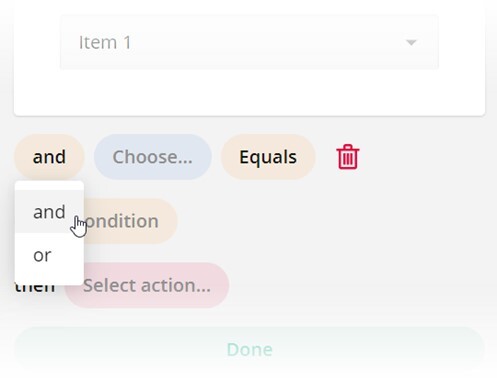
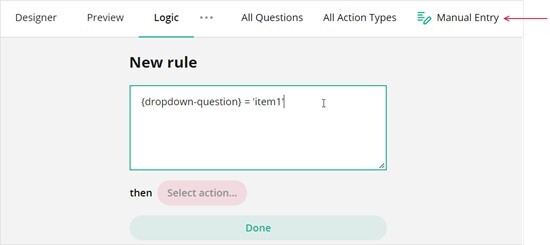
Conditions that you specify in the UI are converted to logical expressions. If you prefer to enter the expressions directly, click the Manual Entry button on the Toolbar.
Specify the action (then-clause) Select one of the following actions from the drop-down menu:
- Show (hide) page
- Makes the selected page visible. If you want to hide the page, invert the logic of your condition.
- Enable (disable) page
- Makes the selected page editable. If you want to make the page read-only, invert the logic of your condition.
- Show (hide) question
- Makes the selected question visible. If you want to hide the question, invert the logic of your condition.
- Enable (disable) question
- Makes the selected question editable. If you want to make the question read-only, invert the logic of your condition.
- Make question required
- Requires an answer for the selected question.
- Complete survey
- Completes the survey.
- Set answer
- Sets a specified answer to the selected question.
- Copy answer
- Copies the answer from the selected question to a target question.
- Skip to question
- Navigates the survey to the selected question.
- Run expression
- Runs a custom expression on the selected question.
- Set "Survey Complete" page markup
- Specifies custom HTML markup for the Survey Complete page.
Edit a Rule
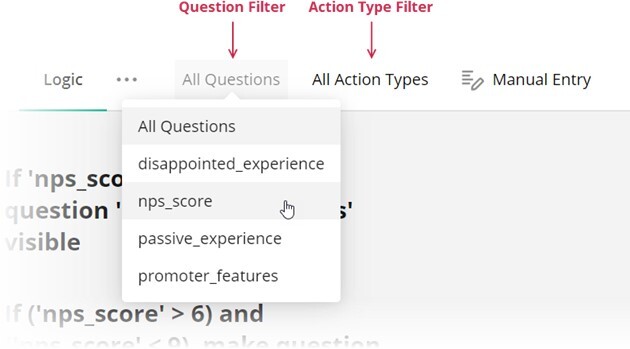
Click a rule to expand it and use UI elements to edit the rule. Click Done to save your changes. How to: Filter rules Use the Question Filter to filter rules by a specific question. You can also use the Action Type Filter to view only rules for the selected action type:
Skip Logic
Skip logic is a dynamic feature that allows you to control the flow of your forms based on respondents' answers. It ensures that your respondents are always prompted to answer the most relevant questions and complete surveys more quickly, providing a personalized survey experience.
An Overview on How it Functions
Question ID
Every input field added to your Survey Builder form is automatically assigned an ID. You can change this ID in the General settings of a question by entering a new value in the Question name property. This ID is not visible to respondents and is used in various form configurations, including skip logic setup.
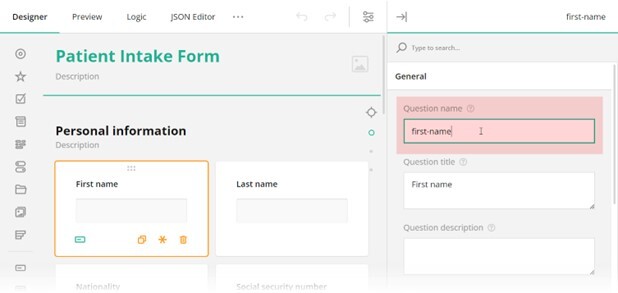
If you choose to enter conditional rules and expressions manually, and they involve the value of a certain trigger question, use curly brackets to reference the question ID whose value you want to access, e.g., {driving-license} = true, where driving-license is the ID of the trigger question. Otherwise, use the graphical user interface (GUI) described below to set up your conditional logic without manual entry.
Triggers
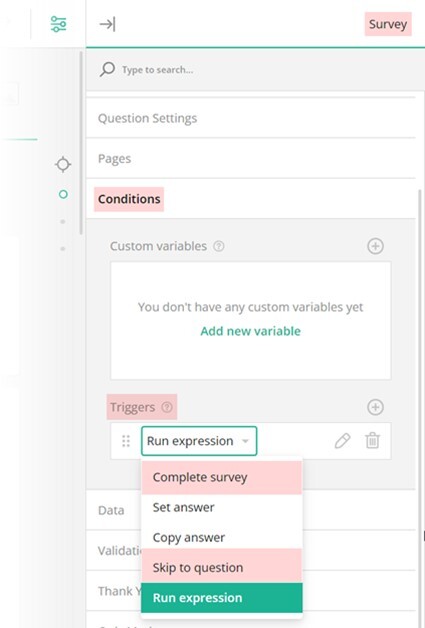
A trigger is an event or condition that is based on an expression. Once the expression evaluates to true, a trigger sets off an action. Such an action can optionally have a target question it affects. In Survey Builder Form, two types of triggers allow you to set up skip logic in a form:
- Skip to question - Takes a respondent to a target question if a specified expression evaluates to true.
- Complete survey - Triggers survey completion if a specified expression evaluates to true.
Skip Logic Directions
Skip logic can be used to send respondents both forward and backward in the survey. By applying skip logic in reverse, participants can backtrack and provide answers to earlier sections or questions they initially left unanswered without navigating through the entire survey again.
Skip Logic Destinations
Based on a respondent's answer to the current question, Survey Builder allows you to redirect them to the "Thank you" page or one of the following destinations:
- A specific question within the same section (in Survey Builder referred to as a panel).
- A specific question within the same page.
- A specific question within a different section on the same page.
- A specific question within a different section on a different page.
- The "Thank you" page.
Skip Logic Examples
Example #1
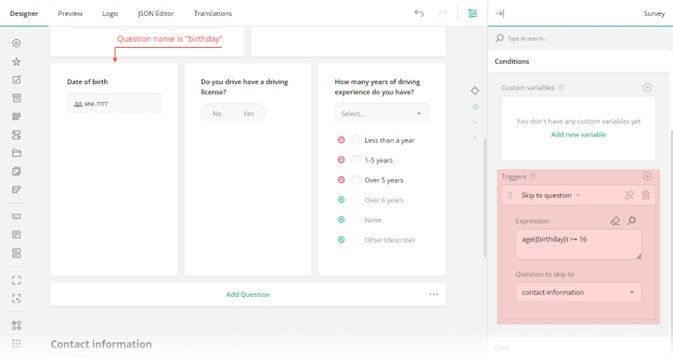
In the example below, we are using a built-in age function that calculates respondents' age at runtime based on the date they set in an input field with an ID birthday. If a respondent's age is less than 16 years, the expression will evaluate to true, and the next two questions—"Do you have a driving license?" and "How many years of driving experience do you have?"—will be skipped. Such a respondent will then be prompted to the next page question with an ID contact-information.
Example #2
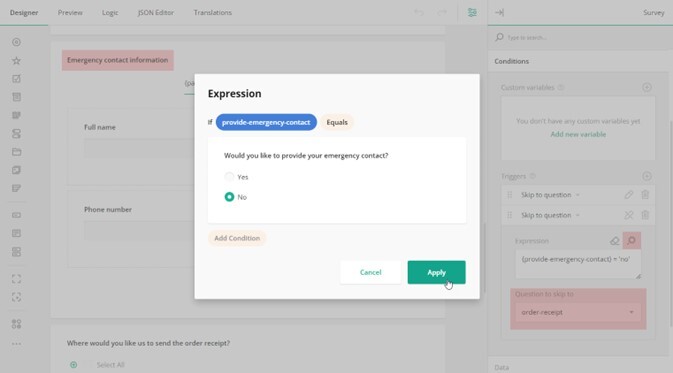
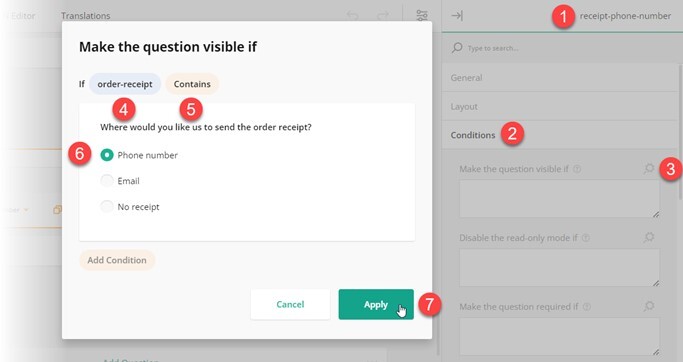
In the next example, if a user replies "No" to the "Would you like to provide your emergency contact?" question, they are redirected to the question with an ID order-receipt, leaving out an entire question group with a title "Emergency contact information". The image below shows a drop-down menu with a selected target question and a GUI for building a conditional expression, which is activated by a click on the magic wand icon.
Example #3
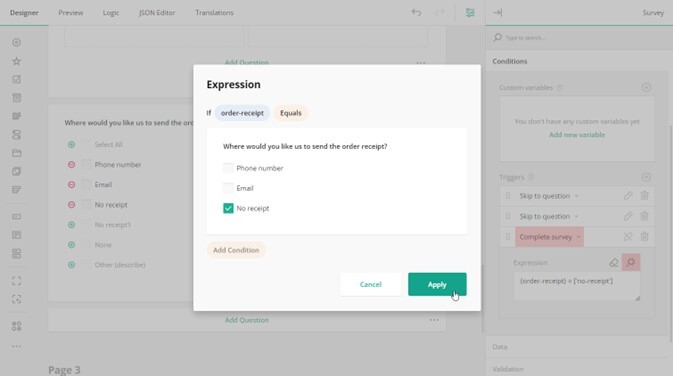
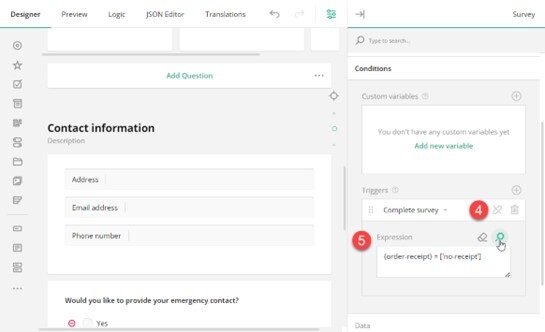
In the following example, we are using the "Complete survey" trigger. Once a conditional expression it's based on evaluates to true (i.e. a respondent replies "No receipt" to the "Where would you like us to send the order receipt?" question), it'll initiate survey completion. Such a respondent will then be prompted to submit the survey.
How to Add Skip Logic
Skip to Question
To redirect a respondent to a specific question in a form, follow the steps below:
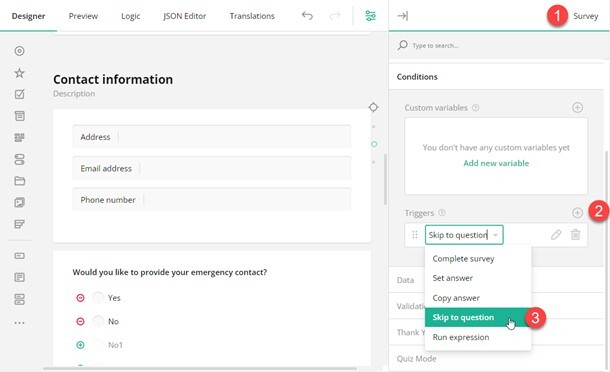
- In the top right corner of the Property Grid, select Survey to switch to the survey-level settings.
- Under Conditions, locate a subsection called Triggers and click the Plus icon to add a new trigger.
- In the trigger drop-down menu, select Skip to question.
- Click the Pen icon to expand the trigger settings.
- Use one of the following ways to specify an expression that, when evaluates to true, will take a respondent to the target question (the destination you want to direct a respondent to).
- Enter the expression in the Expression field.
- Click the Magic wand icon to open a popup and build the expression using a GUI. Click Apply when you finish.
- Select a target question using the drop-down menu of the Question to skip to property.

Complete Survey
To automatically complete a survey based on a user response, follow the steps below:
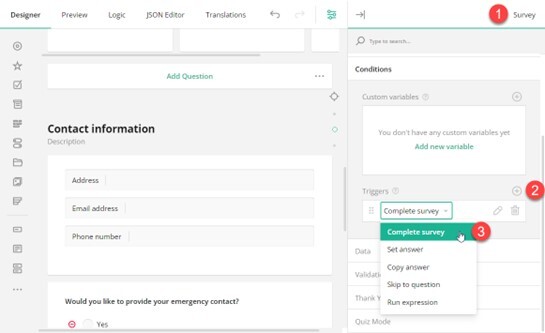
- In the top right corner of the Property Grid, select Survey to switch to the survey-level settings.
- Under Conditions, locate a subsection called Triggers and click the Plus icon to add a new trigger.
- In the trigger drop-down menu, select Complete survey.
- Click the Pen icon to expand the trigger settings.
- Use one of the following ways to specify an expression that, when evaluates to true, will activate survey completion.
- Enter the expression in the Expression field.
- Click the Magic wand icon to open a popup and build the expression using a GUI. Click Apply when you finish.
Display Logic
Display logic, also known as conditional logic, is a feature that allows you to dynamically show or hide certain form fields or sections based on predefined conditions. Instead of displaying all questions or options at once, display logic enables the form content to adapt in real-time according to the user's input and show only relevant information. This makes the form more user-friendly and ensures that users can complete it more efficiently.
An Overview on How it Functions
Every element you add to your Survey Builder form is automatically assigned an ID. This ID is not visible to respondents and is used in various form configurations, including display logic setup. By using element IDs, you can configure display logic on any form page, section, input field, or choice option.
Question ID
You can change the question ID in the General settings of a question by entering a new value in the Question name property.
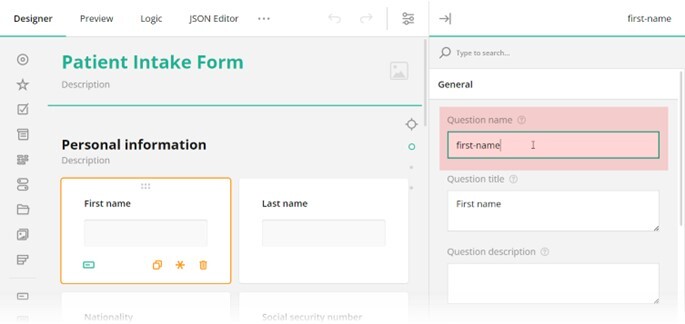
Similar properties are used to set an ID for a page or panel (a container element that allows you to group and manage several questions together): Page name and Panel name.
Choice Option ID
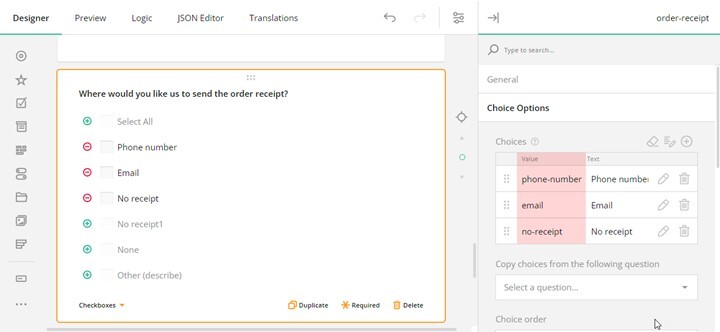
Choice options in single- and multi-select questions (Radio Button Group, Dropdown, Ranking, etc.) use the Value property to specify option IDs. To update the default choice option ID, select the question, and under Choice Options, enter a new ID in the left column. The right column values serve as display values that are visible to respondents.
Item ID
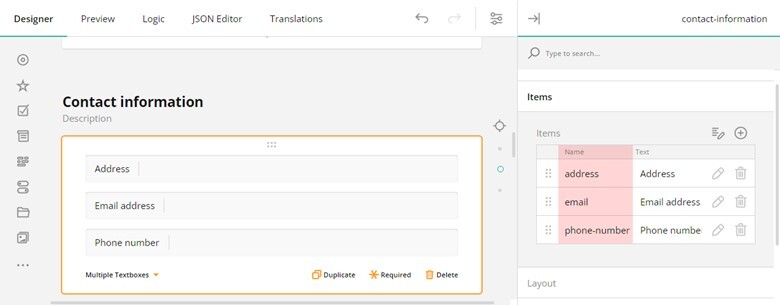
Certain multiple entry questions, such as Multiple Textboxes, use items instead of choice options. In order to manage the visibility of individual items or use them as trigger elements, item IDs are used. To change a default item ID, select the question, locate the Items table, and enter a new item ID in the Name column on the left.
If you want to manually enter conditional rules and expressions that define display logic, make sure to use curly brackets for referencing the question ID whose value you want to access and use as a trigger element, e.g., {nationality} = ‘United States’, where nationality is a trigger question ID. Similarly, by appending a path to the value, you can access and use as a trigger a specific question item: {contact-details.email} notempty, where contact-details is a question ID to which an item belongs and email is the ID of the item itself. Otherwise, use the graphical user interface (GUI) described below to set up your display logic without manual entry.
Types of Display Logic
Conditional Visibility
Conditional visibility determines whether an input field, choice option, section, or the entire page of your form is displayed to the user based on specified conditions. For instance, in an online shopping checkout form, additional shipping address fields might only become visible if the user selects a different shipping address from their billing address.
Conditional Read-Only Mode
Conditional read-only mode logic controls whether a survey element is editable or in read-only state based on certain conditions. For example, in a survey form asking about age, the field for "Parent Name" might only be editable if the respondent indicates they are under a certain age.
Page Display Logic
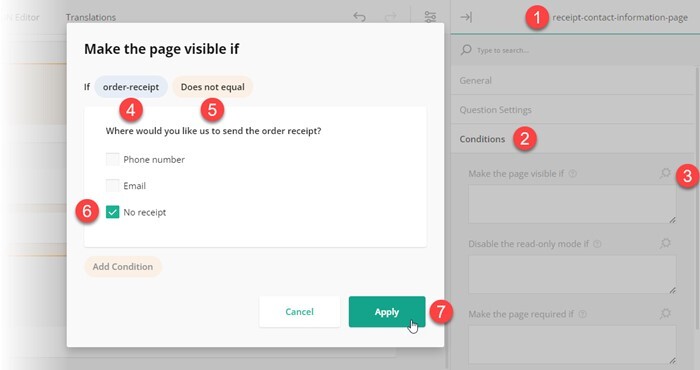
Page display logic is used to dynamically control the visibility and read-only state of form pages based on predefined conditions that include user input. To set up a display logic on a page, follow these steps:
- Select the page for which you want to create a conditional rule.
- Under the Conditions category, locate the Make the page visible if (if you want to conditionally hide the page) or Disable the read-only mode if property (if you want to conditionally restrict page editing).
- Click the Magic wand icon on the right of the property you want to configure. This action opens a popup with a GUI for setting up display logic.
- In the popup, select the trigger element ID.
- Select a condition from the drop-down menu: Empty, Not Empty, Equals, Does not equal, Any of, Greater than, Less than, Greater than or equals to, or Less than or equals to.
- Type in or select the triggering answer.
- Click Apply.
Section Display Logic
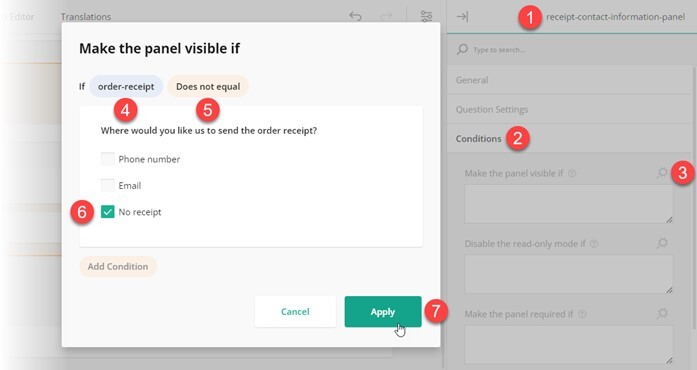
In the Survey Builder Form, a section of a form is referred to as a panel. It functions as a container that can be populated with various input fields and other panels to easily manage all nested elements at once. To set up a display logic on a panel, follow these steps:
- Select the panel for which you want to create a conditional rule.
- Under the Conditions category, locate the Make the panel visible if (if you want to conditionally hide the panel) or Disable the read-only mode if property (if you want to conditionally restrict panel editing).
- Click the Magic wand icon on the right of the property you want to configure. This action opens a popup with a GUI for setting up display logic.
- In the popup, select a trigger element ID.
- Select a condition from the drop-down menu: Empty, Not Empty, Equals, Does not equal, Any of, Greater than, Less than, Greater than or equals to, or Less than or equals to.
- Type in or select the triggering answer.
- Click Apply.
Question Display Logic
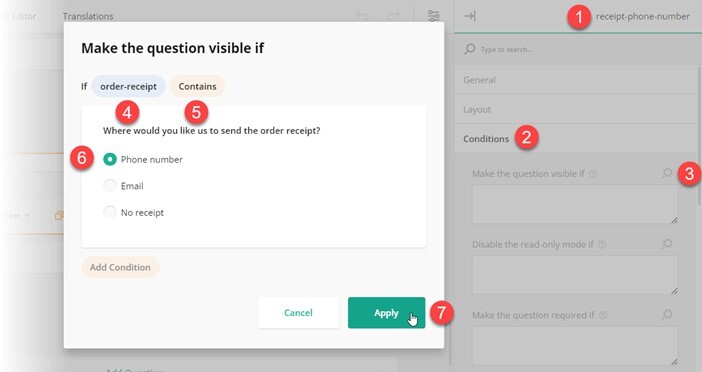
Question display logic allows you to dynamically manage the visibility and read-only state of form questions based on predefined conditions. To configure a display logic for a question, follow the steps below:
- Select the question or input field for which you want to create a conditional rule.
- Under the Conditions category, locate the Make the question visible if (if you want to conditionally hide the question) or Disable the read-only mode if property (if you want to conditionally restrict question editing).
- Click the Magic wand icon on the right of the property you want to configure. This action opens a popup with a GUI for setting up display logic.
- In the popup, select a trigger element ID.
- Select a condition from the drop-down menu: Empty, Not Empty, Equals, Does not equal, Any of, Greater than, Less than, Greater than or equals to, or Less than or equals to.
- Type in or select the triggering answer.
- Click Apply.
Choice Option Display Logic
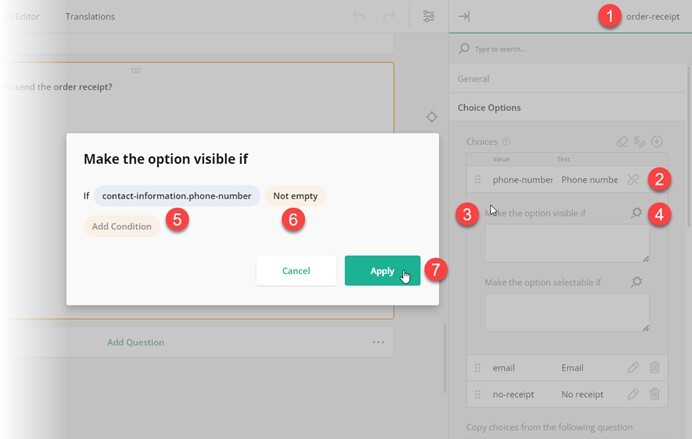
Choice option display logic is used to determine the visibility and read-only state of specific options within a multiple-choice question based on a predefined condition. To set up a display logic on a choice option, do the following:
- Select a question to which a dependent choice option belongs to.
- Under the Choice Options category, locate the dependent choice option and click the Pen icon to expand its individual settings.
- Locate the Make the option visible if (if you want to conditionally hide the option) or Make the option selectable if property (if you want to conditionally disable the option).
- Click the Magic wand icon on the right of the property you want to configure. This action opens a popup with a GUI for setting up display logic.
- In the popup, select a trigger element ID.
- Select a condition from the drop-down menu: Empty, Not Empty, Equals, Does not equal, Any of, Greater than, Less than, Greater than or equals to, or Less than or equals to.
- Type in or select the triggering answer and click Apply.
In the example below, the trigger element ID is contact-information.phone-number, where contact-information is the ID of the Multiple Textboxes question and phone-number is the ID of its item. The condition specifies that the item should not be empty, which means a user must provide an answer to this item.
Edit and Remove Display Logic in the GUI
Survey Builder Form features a Conditions section in the Property Grid for all form elements and a dedicated Logic tab. This flexibility allows users with varying technical expertise to easily set up display logic on any form element through a GUI. The Logic tab consolidates all conditional rules created in individual Conditions sections of the Property Grid. Through the Logic tab, you can quickly access and edit existing rules in one centralized location without the need to navigate to specific form elements.
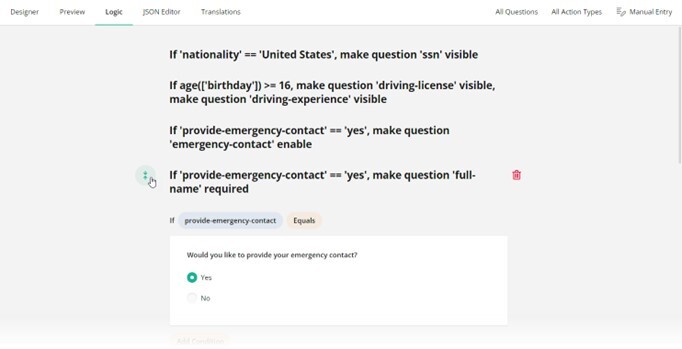
To remove a conditional rule, follow these steps:
- Navigate to the Logic tab.
- Locate the conditional rule you want to remove and click the Bin icon that appears as you hover over the rule.
The default settings of the form builder do not offer a confirmation message upon deletion. The deleted conditional rule cannot be restored.
To edit a conditional rule, do the following:
- Navigate to the Logic tab.
- Locate the conditional rule you want to edit and click the Expand icon that appears as you hover over the rule.
- Make necessary adjustments.
- Click Done to save changes.
If you're managing complex conditional rules, you can input them manually. To activate manual entry mode, expand a logic rule and click Manual Entry in the top right corner of the Logic tab.
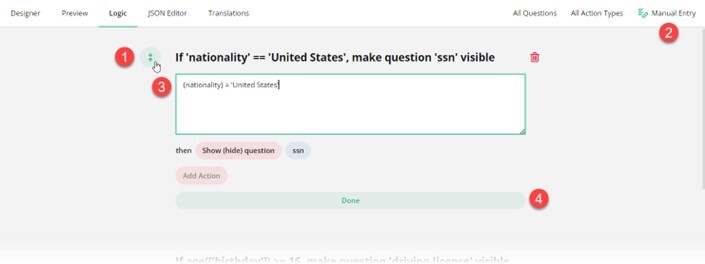
Branching Logic
Branching logic, also known as branch logic or form branching, refers to the practice of designing forms that allows you to direct respondents along different conditional paths based on their responses to preceding questions. With branching logic in place, your form can automatically skip irrelevant questions, reveal or hide certain sections, or even prompt a respondent to the survey completion page. This dynamic approach enables forms to adapt to individual inputs and ensures that respondents are presented with only the most relevant content, thereby increasing completion rates and data accuracy. For example, consider a customer satisfaction survey for a software product. If a respondent indicates that they are satisfied with the product's performance, branching logic might direct them to a follow-up question asking for additional feedback. However, if the respondent expresses dissatisfaction, the logic might skip the follow-up question and instead prompt them to indicate specific areas of improvement.
Types of Branching Logic
Skip Logic
Skip logic is a form of branching that allows respondents to skip certain questions or sections based on their responses to previous questions. For instance, if a respondent indicates they do not own a car, skip logic might bypass questions related to car ownership and proceed to the next relevant section.
Show/Hide Logic
Show/hide logic, also known as display logic, involves revealing or concealing specific questions or sections based on predefined conditions. For example, if a respondent selects “Yes” to a question about owning a pet, show/hide logic might display additional questions related to pet ownership while hiding them if the respondent selects “No”.
Complete Survey Logic
In more complex scenarios, branching logic can direct respondents to the “Thank You” page based on how they responded to a trigger question. For example, if a respondent answers “Yes” to a question about experiencing a particular issue, they might be directed to a follow-up section with more detailed questions about that issue. On the other hand, if they answer “No”, they might be directed to the survey completion page because all further questions are not relevant to them due to the absence of any encountered issue.
How to Set Up Branching Logic
Skip to Question
To guide a respondent to a specific question further down the line based on their response to a current question, you can implement an expression-based event called "trigger". When the expression evaluates to true, the trigger initiates an action. One such trigger type is "Skip to question". It takes a respondent to a target question.
To set up branching logic that redirects a respondent to a specific form question, follow these steps:
- In the top right corner of the Property Grid, select Survey to switch to the survey-level settings.
- Under Conditions, locate a subsection called Triggers and click the Plus icon to add a new trigger.
- In the trigger drop-down menu, select Skip to question.
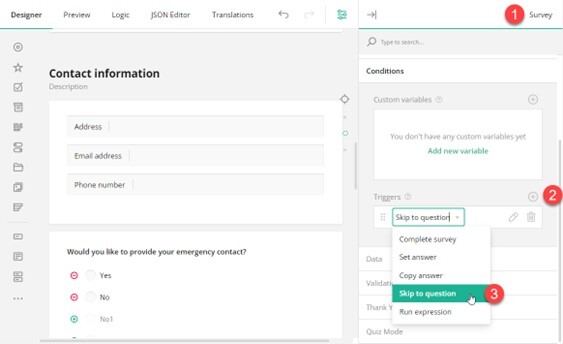
- Click the Pen icon to expand the trigger settings.
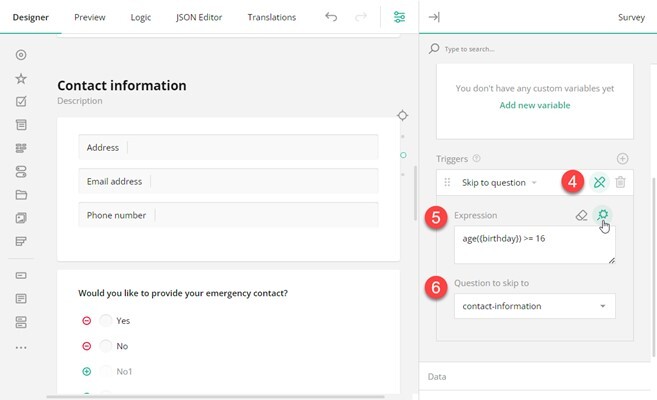
- Use one of the following ways to specify an expression that, when evaluates to true, will take a respondent to the target question (the destination you want to direct a respondent to).
- Enter the expression in the Expression field.
- Click the Magic wand icon to open a popup and build the expression using a GUI. Click Apply when you finish.
- Select a target question using the drop-down menu of the Question to skip to property.
Show/Hide Questions
The simplest way to incorporate branching logic in a form is by displaying certain questions to some of your respondents while hiding them from others based on their answers. This approach is particularly convenient when you need to target specific form elements. With Survey Builder, you can set up display logic on individual questions, sections (in Survey Builder referred to as "panels"), or the entire page.
To create a conditional rule that determines the visibility of a question, panel, or page, do the following:
- Select the dependent element you want to dynamically hide.
- Expand its Conditions category in the Property Grid and locate the Make the question/panel/page visible if property.
- Click the Magic wand icon on the right of the property. This action opens a popup with a GUI for setting up display logic.
- In the popup, select the trigger element ID (its Question name property value).
- Select a condition from the drop-down menu: Empty, Not Empty, Equals, Does not equal, Any of, Greater than, Less than, Greater than or equals to, or Less than or equals to.
- Type in or select the triggering answer.
- Click Apply.
Complete Survey
To automatically complete a survey based on a user response, perform the following steps:
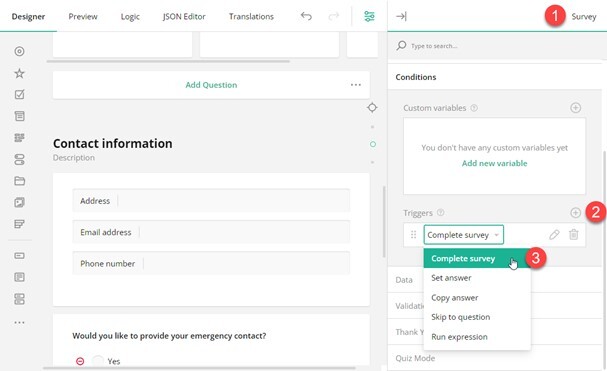
- In the top right corner of the Property Grid, select Survey to switch to the survey-level settings.
- Under Conditions, locate a subsection called Triggers and click the Plus icon to add a new trigger.
- In the trigger drop-down menu, select Complete survey.
- Click the Pen icon to expand the trigger settings.
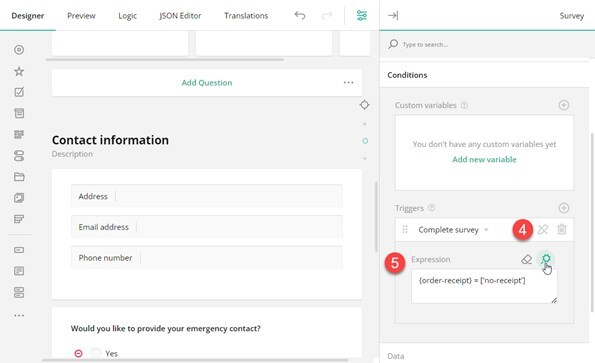
- Use one of the following ways to specify an expression that, when evaluates to true, will activate survey completion.
- Enter the expression in the Expression field.
- Click the Magic wand icon to open a popup and build the expression using a GUI. Click Apply when you finish.